July 28, 2026
XML to Excel: Making Structured Data Spreadsheet-Friendly
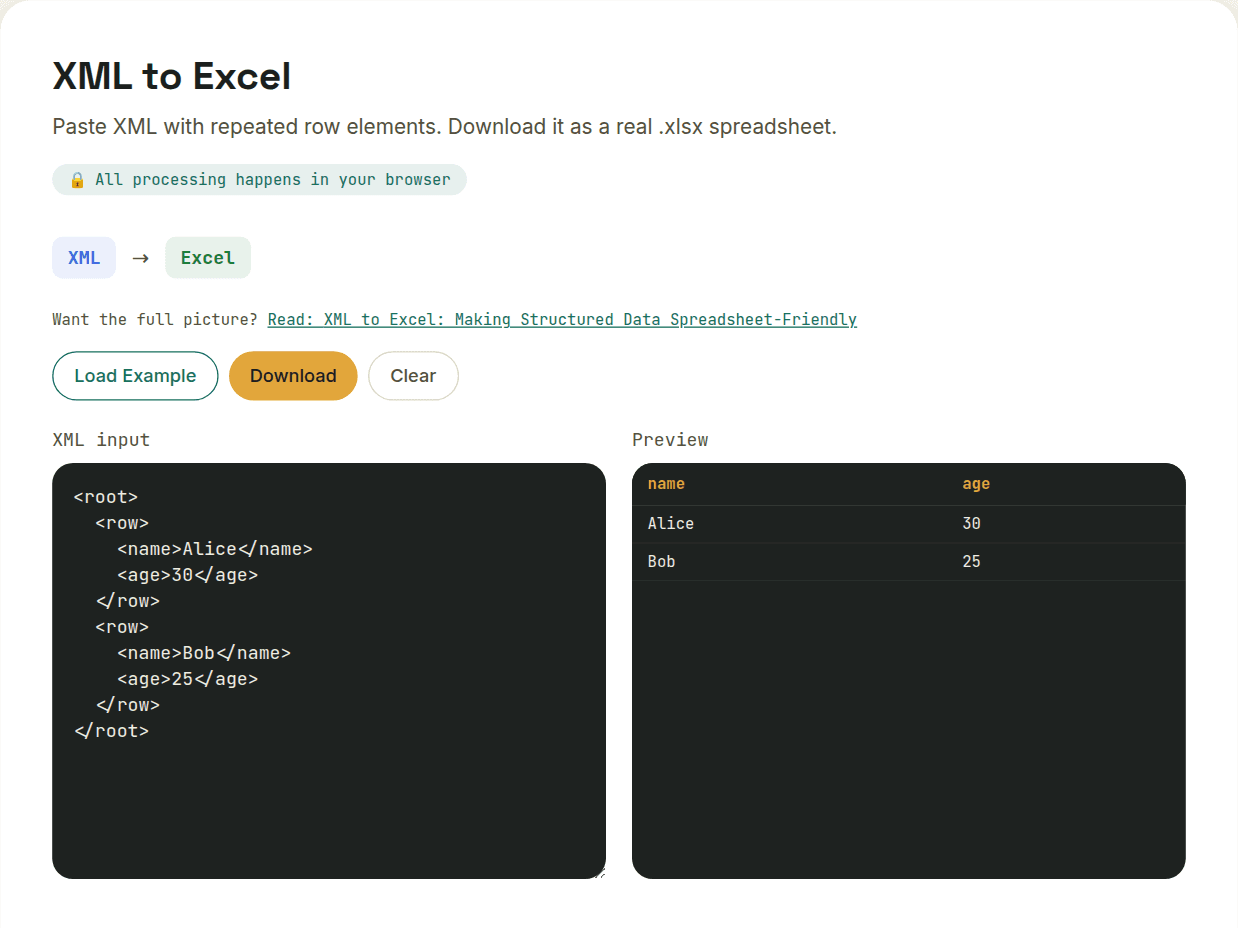
Converting XML to Excel flattens XML's tree structure into rows and columns — repeated sibling elements become rows cleanly, while nested elements and attributes get folded into dot-notated or separate columns. The main risk is inconsistent records: if some elements are missing an optional field, a correct converter still needs a column for it, with blank cells where that data doesn't exist.
The same flattening challenge as XML-to-CSV
Since Excel, like CSV, is fundamentally a grid, converting XML to it runs into the identical structural challenge: XML's tree structure has to be flattened into rows and columns. Repeated sibling elements with a consistent shape become rows cleanly; nested elements get flattened into dot-notated column headers; attributes need to be folded in as their own columns rather than dropped.
What Excel adds over a plain CSV conversion
Because the destination is a real spreadsheet rather than plain text, a good XML-to-Excel converter can go slightly further than a CSV conversion would: numeric-looking XML text content can become actual numeric cells (so totals and averages work immediately), and if the source XML has a genuinely repeated top-level structure, some converters will split it across multiple sheets — one sheet per distinct top-level element type, for instance — rather than forcing everything into a single flat table.
Inconsistent records are the main practical risk
Real-world XML frequently has records that don't all share the same child elements — an optional <discount> element present on some <product> records and absent on others, for example. A correct conversion needs a column for every field seen across all records, with blank cells where a given record's XML simply didn't include that element. Skipping this check can silently misalign your columns if a converter naively assumes every record has an identical shape.
- Verify column headers match across the full dataset, not just the first record you glanced at
- Check numeric and date-like fields converted into usable cell types, not left as plain text
- If the workbook came out with multiple sheets, confirm that split matches how you actually intend to use the data
Want to try this yourself?
Open XML to Excel →