July 25, 2026
Excel to CSV: What Survives the Conversion and What Doesn't
Converting Excel to CSV keeps your cell values and structure but strips out everything else — formulas (only their calculated result survives), formatting, multiple sheets, charts, and cell comments. That's usually fine, since CSV was never meant to hold those things, but it's worth knowing exactly what's dropped before you rely on the export.
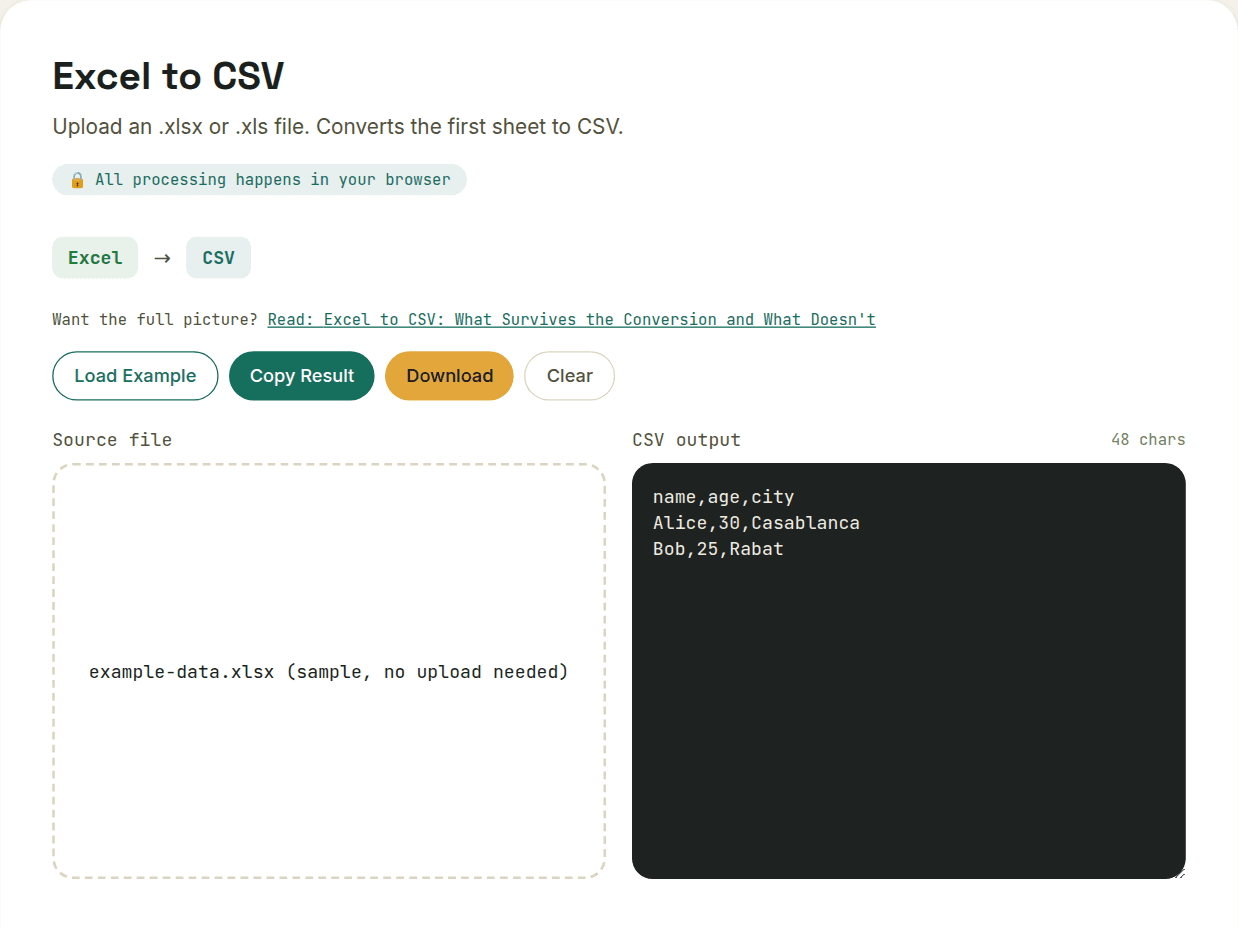
What CSV keeps: values, exactly one sheet's worth
CSV preserves cell values and structure — rows and columns of data — for a single sheet. If your spreadsheet has multiple tabs, a straightforward Excel-to-CSV conversion produces one CSV per sheet, or converts only the active/first sheet, depending on the tool. There's no such thing as a multi-sheet CSV file; the format has no concept of sheets at all.
What CSV can't hold: everything visual and computational
- Formulas — CSV stores only the calculated result, not the formula itself; =SUM(A1:A10) becomes just the number it evaluated to
- Formatting — cell colors, fonts, borders, conditional formatting, column widths — none of it survives
- Charts and images — CSV is text-only; embedded visuals are dropped entirely
- Multiple sheets, named ranges, and cell comments — all Excel-specific concepts with no CSV equivalent
The number-formatting trap
This is the one that causes real bugs: Excel can display a value with formatting (currency symbols, percentage signs, date formats) while storing a different underlying number. A cell showing "$1,200.00" might store 1200 as its actual value; a cell showing a date might store a serial number internally. A CSV export reflects the underlying value, not the display formatting — which is usually what you want, but occasionally isn't, especially with dates that can convert to an unexpected numeric or ISO format.
Practical checklist before converting
- Confirm which sheet you actually need if the workbook has more than one
- Double-check date and currency columns in the output — verify they converted to a format your downstream system expects
- Remember any formulas are gone for good in the CSV — keep the original XLSX if you'll need to recalculate anything later
Want to try this yourself?
Open Excel to CSV →