August 17, 2026
Converting a Multi-Sheet Excel Workbook to XML
Converting a multi-sheet Excel workbook to XML requires picking a structure XML doesn't have natively — a workbook can hold multiple named sheets, but XML only has one root element, so a converter has to either nest all sheets under a single root (with each sheet as its own child element) or produce a separate XML file per sheet, since there's no standard single-file convention for representing worksheets.
The nested-root approach
<workbook>
  <sheet name="Products">
    <row><name>Widget</name><price>19.99</price></row>
  </sheet>
  <sheet name="Customers">
    <row><name>Alice</name><city>Casablanca</city></row>
  </sheet>
</workbook>
This keeps everything in one file and preserves which rows belong to which sheet, at the cost of an extra nesting level compared to converting a single sheet directly.
Why most simple converters default to one sheet
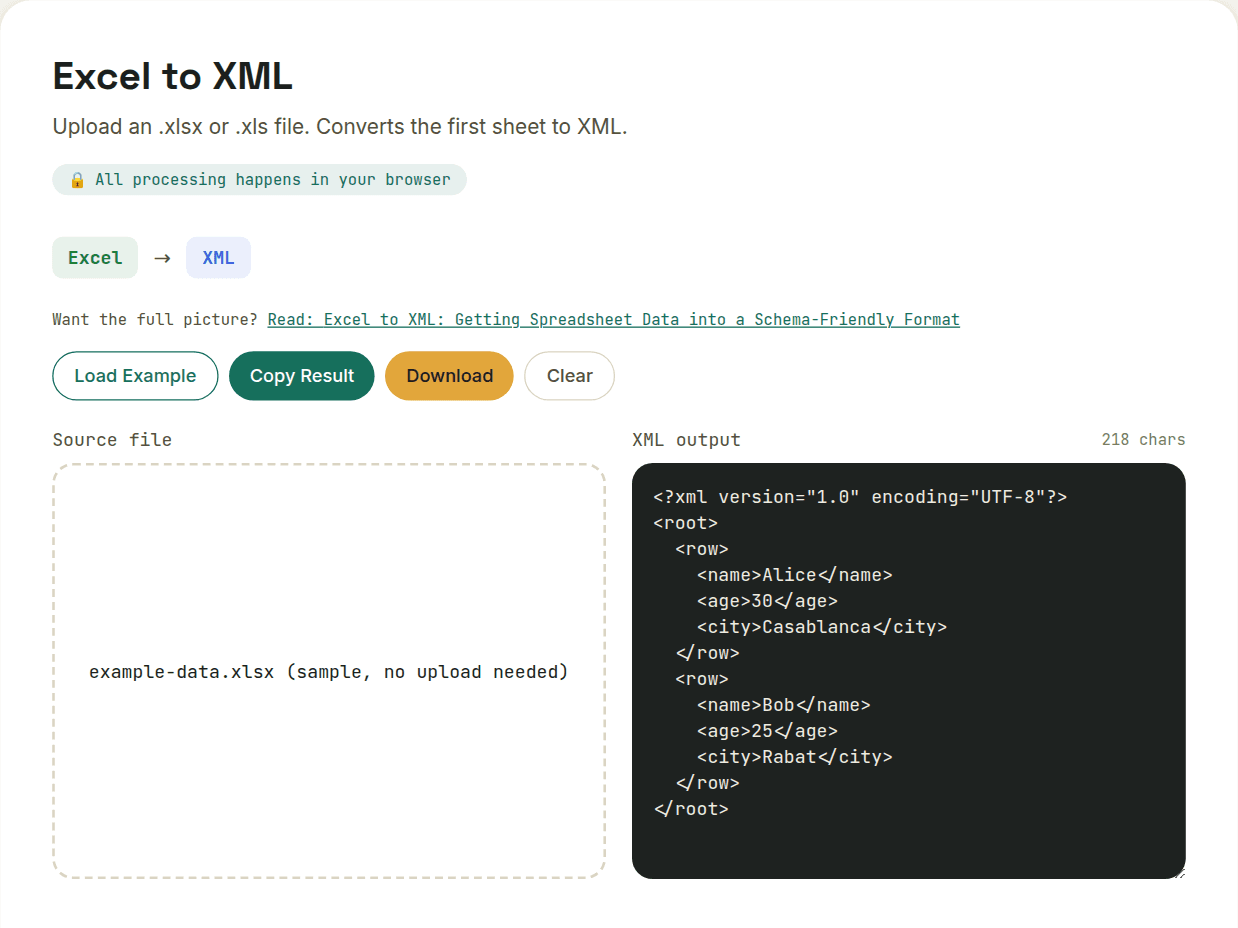
A straightforward Excel-to-XML converter — including the one on this site — typically converts only the first (or active) sheet by default, since that covers the overwhelmingly common case of a single-purpose spreadsheet, and avoids forcing a specific multi-sheet structure on you that might not match what the receiving system actually expects. If your workbook has data spread across multiple sheets you need in the output, check which sheet a given conversion actually targeted before assuming everything came through.
Formulas still resolve to values either way
Regardless of which sheet-handling approach is used, formula cells always contribute their calculated result to the XML, not the formula itself — XML has no equivalent for "this value is derived from another cell," so keep the original workbook if you'll need the calculation logic later, not just the output values.
Want to try this yourself?
Open Excel to XML →